Why Is My Wi-Fi Fast but My Internet Still Feels Slow? 9 Causes and Fixes

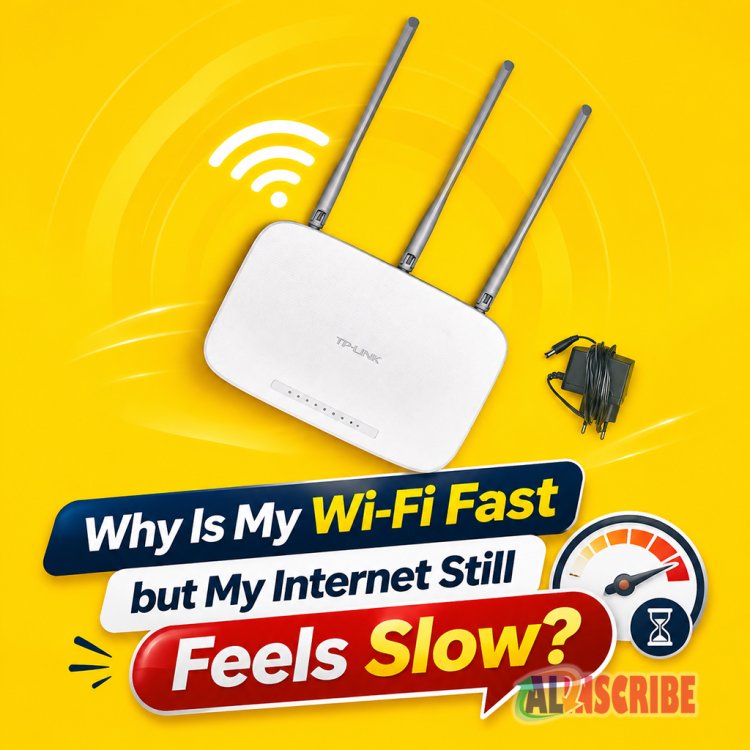
A full signal bar doesn't mean a working connection. Plenty of people pay for a fast internet plan, see a strong Wi-Fi icon on their phone, and still watch a page spin or a video call freeze. This wifi fast but internet slow gap between what your provider advertises and what you actually feel has a specific set of causes, and almost none of them require you to argue with your internet service provider (ISP). Internet speed and Wi-Fi speed are two different measurements.
Internet speed is the bandwidth your ISP delivers to your modem. Wi-Fi speed is how efficiently your router turns that bandwidth into a usable signal inside your home, and it is shaped by hardware, distance, interference, and how many things are competing for airtime at once.
Below are the nine most common reasons a fast plan feels slow in practice, in roughly the order worth checking, along with a quick way to confirm each one and fix it.
1. Your Router Can't Keep Up With Your Plan
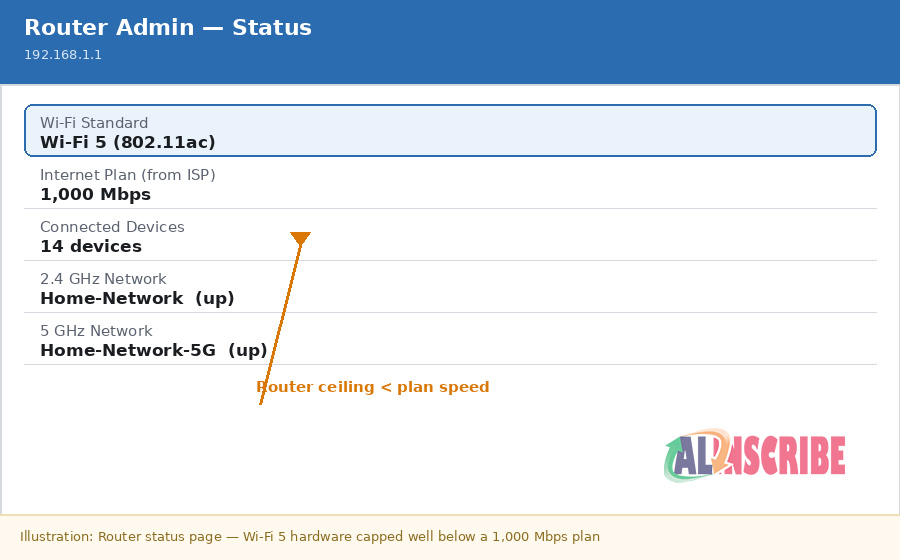
The most common bottleneck is not the internet connection at all — it's the box broadcasting it. Every Wi-Fi generation has a real-world ceiling: older Wi-Fi 4 (802.11n) hardware tops out around 150–300 Mbps in practice, Wi-Fi 5 (802.11ac) can reach 400–800 Mbps depending on the model, and Wi-Fi 6 (802.11ax) handles 900 Mbps or more and copes far better with multiple devices.
How to Check This
Check your router model's box or settings page for its advertised Wi-Fi standard (look for "Wi-Fi 4/5/6" or "802.11n/ac/ax"), and compare that ceiling against your internet plan's advertised speed. If your plan is faster than your router's ceiling, no amount of troubleshooting elsewhere will help. This is especially common with equipment provided free by an ISP: those combination modem-router "gateways" are typically built to a price point rather than for performance, with weaker antennas and processors that struggle once more than a handful of devices connect.
2. You're Comparing Two Different Numbers
A lot of frustration comes from a simple mismatch in expectations. Your ISP's advertised number is measured over a wired connection under close to ideal conditions — it's effectively the size of the pipe coming into your home. Wi-Fi speed is a separate measurement of how much of that pipe actually reaches a specific device over radio waves, and it is normal for it to sit noticeably below the wired number even on healthy equipment.
Even in ideal conditions, a router typically delivers only 60–70% of its rated maximum speed over Wi-Fi — that gap is normal, not a fault.
Even a well-configured Wi-Fi 6 router rated for 1,200 Mbps will often deliver more like 700–800 Mbps in real conditions once overhead from radio protocols, retransmissions, and encryption is accounted for. Treating the wired plan speed and the Wi-Fi speed as interchangeable is the single most common source of "why am I not getting what I pay for" complaints.
3. You're on the Wrong Frequency Band
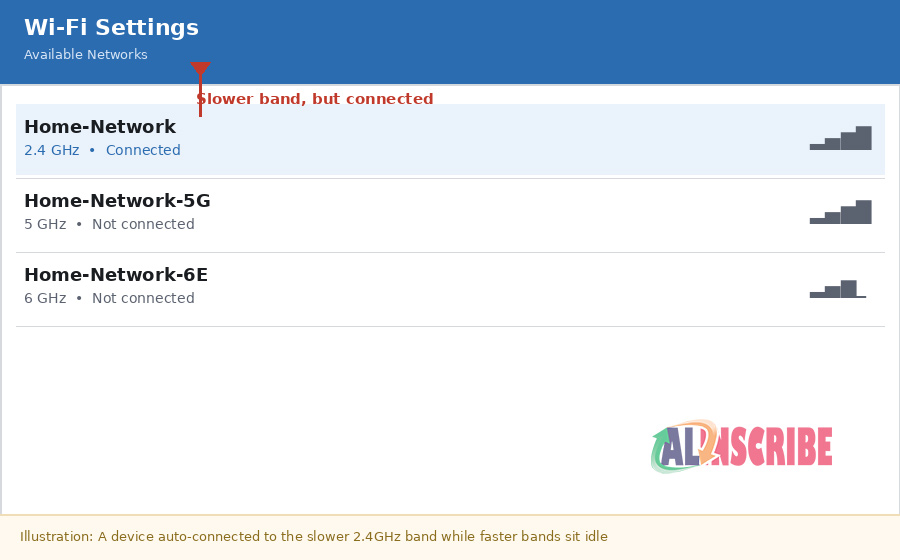
Most routers broadcast on two or three bands at once: 2.4 GHz, 5 GHz, and on newer hardware, 6 GHz. Each behaves differently. The 2.4 GHz band travels farther through walls but is slower and more crowded, since it's shared with older devices, cordless phones, and microwaves. The 5 GHz band is meaningfully faster but loses range and penetration. The newer 6 GHz band offers the most headroom but is the most sensitive to distance and obstacles.
The Fix
A device that's auto-connected to the 2.4 GHz network out of habit, or because it wandered out of 5 GHz range, can feel dramatically slower than the same device a few feet closer on the faster band. Manually assigning bandwidth-hungry devices — streaming boxes, laptops, gaming consoles — to the 5 GHz or 6 GHz network is often a free, immediate improvement.
4. Distance and Obstructions Are Cutting Your Signal
Wi-Fi signal degrades with distance and loses more strength passing through walls, floors, furniture, and especially metal or dense materials like brick and concrete. A router tucked inside a cabinet, behind a television, or in a basement corner is fighting a losing battle before a single device connects.
This is also why speeds vary so much by room in the same house: the bedroom two rooms away is not receiving the same signal as the office next to the router, even though both show "connected." Central, elevated, open placement — away from metal appliances and thick walls — recovers a surprising amount of throughput without spending a cent on hardware.
5. Your Devices Are Older Than Your Router
Wi-Fi is a two-way negotiation. A brand-new Wi-Fi 6 router can only go as fast as the weakest link in a given connection, and an older laptop, smart TV, or budget phone with an aging wireless adapter will cap that connection to whatever standard it supports — often Wi-Fi 4 or 5 speeds — regardless of what the router is capable of broadcasting.
This matters most in households with a mix of new and old hardware. Upgrading the router alone won't speed up an older device's own radio; it will, however, generally still improve the experience for newer devices sharing the network, since modern routers manage mixed-generation traffic more efficiently than aging ones.
6. Too Many Devices Are Competing for the Same Airtime
Wi-Fi is a shared medium — think of it as one conversation channel that every connected device has to take turns speaking on, even when they're not actively transferring large amounts of data. Smart TVs, thermostats, doorbell cameras, phones, laptops, and game consoles all check in periodically, and each check-in consumes a small slice of available airtime.
A busy modern household, especially one whose devices grew over several years without ever swapping the router, can genuinely have more connected devices than the equipment was designed to manage well. A router struggling under device count often shows the classic symptom of this cause: performance that's fine at 7 a.m. and unusable at 8 p.m. when everyone is home and connected.
7. Bufferbloat Is Choking Your Connection Under Load
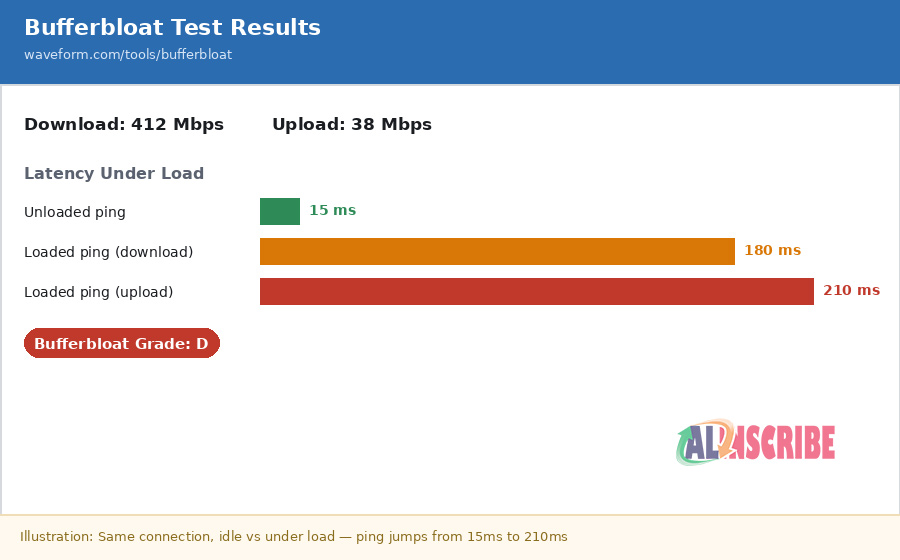
This is the cause most people have never heard of, and it explains the specific complaint of "my speed test looks fine, but everything still feels laggy." Bufferbloat happens when a router holds too much data in its queue at once — like an overly generous waiting room that never turns anyone away. The connection's raw speed stays high, but latency spikes dramatically whenever the line is under real load, which is exactly when it hurts most: mid-video-call, mid-game, mid-upload.
A router with severe bufferbloat can see ping jump from 15 ms at idle to over 200 ms the moment someone else in the house starts a large upload — the download number on a speed test never reveals it.
How to Test and Fix This
Most modern speed-test tools, including the one at Waveform.com/tools/bufferbloat, now include a dedicated bufferbloat grade alongside the usual download/upload numbers — run it while someone else on the network streams or uploads something large, and a large jump in latency (shown as "loaded" vs "unloaded" ping) confirms the cause. This is a queue-management problem, not a bandwidth problem, which is why upgrading your internet plan does nothing to fix it. The practical remedy is enabling Smart Queue Management (SQM) — commonly implemented through algorithms called CAKE or fq_codel — on routers that support it, which actively keeps queues short instead of letting a single large transfer monopolize the line. A 2023 University of Chicago measurement study of more than 13,000 paired home-network tests found that once a household's wired connection exceeded 800 Mbps, the home Wi-Fi network itself was the bottleneck essentially all of the time.
8. Your ISP Is Congested at Peak Hours
Sometimes the slowdown genuinely does start outside the home. Many residential connections, particularly cable, are shared with neighbors on the same local segment of the provider's network — a setup sometimes called contention. During peak evening hours, when everyone nearby is streaming and gaming simultaneously, that shared capacity gets stretched, and speeds can dip even though nothing in the home network changed.
The way to isolate this cause is to run a wired speed test directly from a computer plugged into the modem, at different times of day. If wired speeds are consistently close to the advertised plan late at night but noticeably lower during peak evening hours, the bottleneck is upstream of the router, and the conversation worth having is with the ISP about the connection itself rather than home equipment.
9. Something on Your Network Is Quietly Eating Bandwidth
Finally, background activity is easy to overlook. Automatic system updates, cloud photo and file backups, smart-home devices phoning home, and torrenting or seeding software can consume a meaningful share of bandwidth without any visible window open. On a connection that's already stretched thin by device count or an aging router, this extra load is often what tips things from "a little slow" to "unusable."
A quick audit — checking which apps and devices are actively syncing or updating, and scheduling large backups overnight instead of during peak use — frequently recovers noticeable speed without touching any hardware at all.
How to Diagnose It in Five Minutes
- STEP 1: Plug a laptop or desktop directly into the modem with an Ethernet cable and run a speed test. This is your true ISP speed, with Wi-Fi removed from the equation entirely.
- STEP 2: Run the same test over Wi-Fi, standing close to the router, then again from the room where the problem happens most.
- STEP 3: If wired speed matches your plan but Wi-Fi is far lower, the issue is inside the home: router age, band, distance, or device count.
- STEP 4: If wired speed itself is low, especially only during evenings, the issue is likely ISP congestion upstream of your equipment.
- STEP 5: Run a dedicated bufferbloat test while another device streams or uploads. A large jump in latency under load points specifically to bufferbloat, not raw bandwidth.
The Bottom Line
A fast internet plan is only as good as the weakest link between your ISP and the device in your hand, and in most homes that weak link sits inside the house, not outside it. Router age, frequency band, physical placement, device count, and queue management under load account for the overwhelming majority of wifi fast but internet slow complaints — and every one of them can be diagnosed with a five-minute test and fixed without necessarily buying new hardware or upgrading a plan that was never actually the problem.
Sources
PCWorld — Why is my Wi-Fi still slow after upgrading my internet plan?
HighSpeedInternet.com — How Important Is My Wireless Router to My Internet Speed?
Sparklight — Wi-Fi Speed vs Internet Speed
BroadbandSearch — Your Router or Modem Might Be Slowing Your Internet
whatismyipaddress.com — Slow Internet but Fast Speed Test? 3 Reasons Why
Bufferbloat.net — What Can I Do About Bufferbloat?
How-To Geek — Is Your Router's Wi-Fi Performance Limiting Your Internet Speed?
Article Comments
Articles Search
Sponsor
Featured Articles





Most Popular Articles








Article Categories


There are zero sub-categories in this parent category.
There are zero sub-categories in this parent category.


